Basic Workflow
Basic workflow --> identify available land (no timeseries data)
This guide walks through the end-to-end workflow for running the Land Availability Analysis (LAVA)
tool on a new study region. The steps below assume that you have already cloned the repository, created the
lava environment and finished the data setup. Those steps are documented in the Getting Started instructions.
Overview of the basic workflow
- Create the study-region configuration files in
configs/. - Run
spatial_data_prep.pyto download and prepare necessary data. - Inspect the pre-processed data (optional but recommended) with
data_explore.ipynb. - Run
Exclusion.pyfor each technology to create available-land rasters.
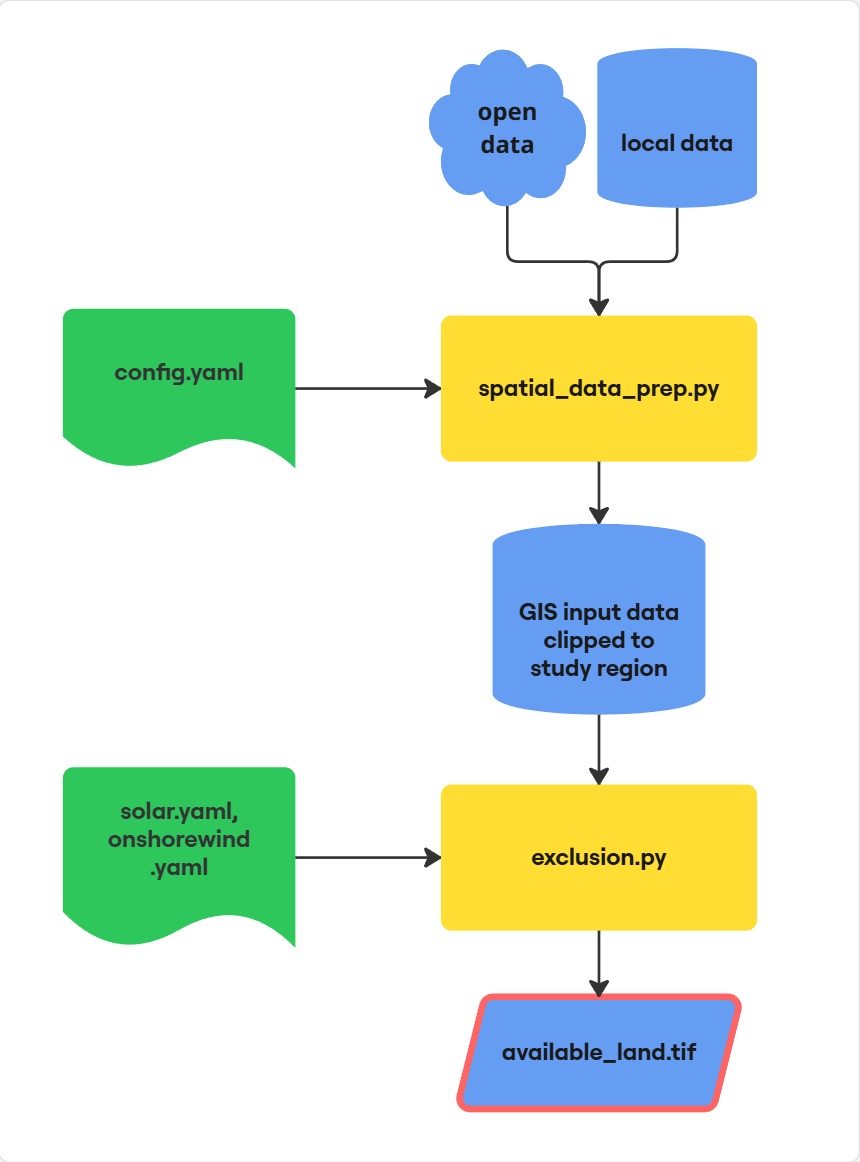

Figure: Flowchart of the basic workflow
Configuration files
In the configs-folder copy the file config_template.yaml, rename it to config.yaml and fill it out. This is your main configuration file for the data download.
For the exclusion criterias copy the files onshorewind_template.yaml and solar_template.yaml. Rename them to onshorewind.yaml and solar.yaml respectively. Fill these files out in order to set the exclusion parameters.
Note
An overview of possible exclusion criterias found in selected literature can be downloaded here.
Prepare data
Run the preprocessing script spatial_data_prep.py after having filled out config.yaml. It downloads data, clips the raw inputs to the
study area, aligns rasters, and computes helper layers such as slope, terrain ruggedness, and
proximity rasters. All outputs are written to a study region specific folder data/{RegionName}/.
Click on the play button to run the script or run it from the terminal with the following command:
python spatial_data_prep.py
When landcover_source is openeo the script will prompt for Copernicus Data Space credentials the first time it runs.
Inspect data inputs
Use data_explore.ipynb to verify the preprocessing results. The notebook loads data from the
data/{RegionName}/ folder, visualises selected layers, and summarises the available land-cover
codes to support tuning of exclusion thresholds.
Land eligibility exclusions
Create technology-specific available-land rasters by running Exclusion.py. The command-line
flags must provide the study region, technology, and scenario so that single runs can be processed
independently. There are configuration files for the land exclusion for wind onshore and utility-scale solar PV.
python Exclusion.py --technology solar --scenario ref --region Odense
python Exclusion.py --technology onshorewind --scenario ref --region Odense
The script loads the prepared rasters and vector layers, applies the filters defined in the
technology configuration, and writes *_available_land_*.tif files under
data/{RegionName}/available_land/. A log of each scenario run is stored in the region folder
for traceability.
Note
A template to document the exclusion parameters and data sources can be downloaded here.
Batch processing with Snakemake
When analysing multiple study regions, you can use a snakemake workflow to automatically execute all scripts for all regions one after another. Adjust config_snakemake.yaml and run the batch job with the following comamand in the terminal:
snakemake -s snakemake/Snakefile --cores 1 --resources openeo_req=1
You can parallelize by using multiple cores. You can use a maximum of 2 openeo_req to download the landcover data.